Manage Authorized Persons
In ReputeInfo, you can add multiple members to an organization. Members can have different roles and permissions based on their responsibilities.
To add a member to your organization, follow these steps:
Add Authorized Person
- Web
- Android/iOS
Step 1: Log in to your ReputeInfo account.
Step 2: Click on the Company Profile tab from the Left sidebar.
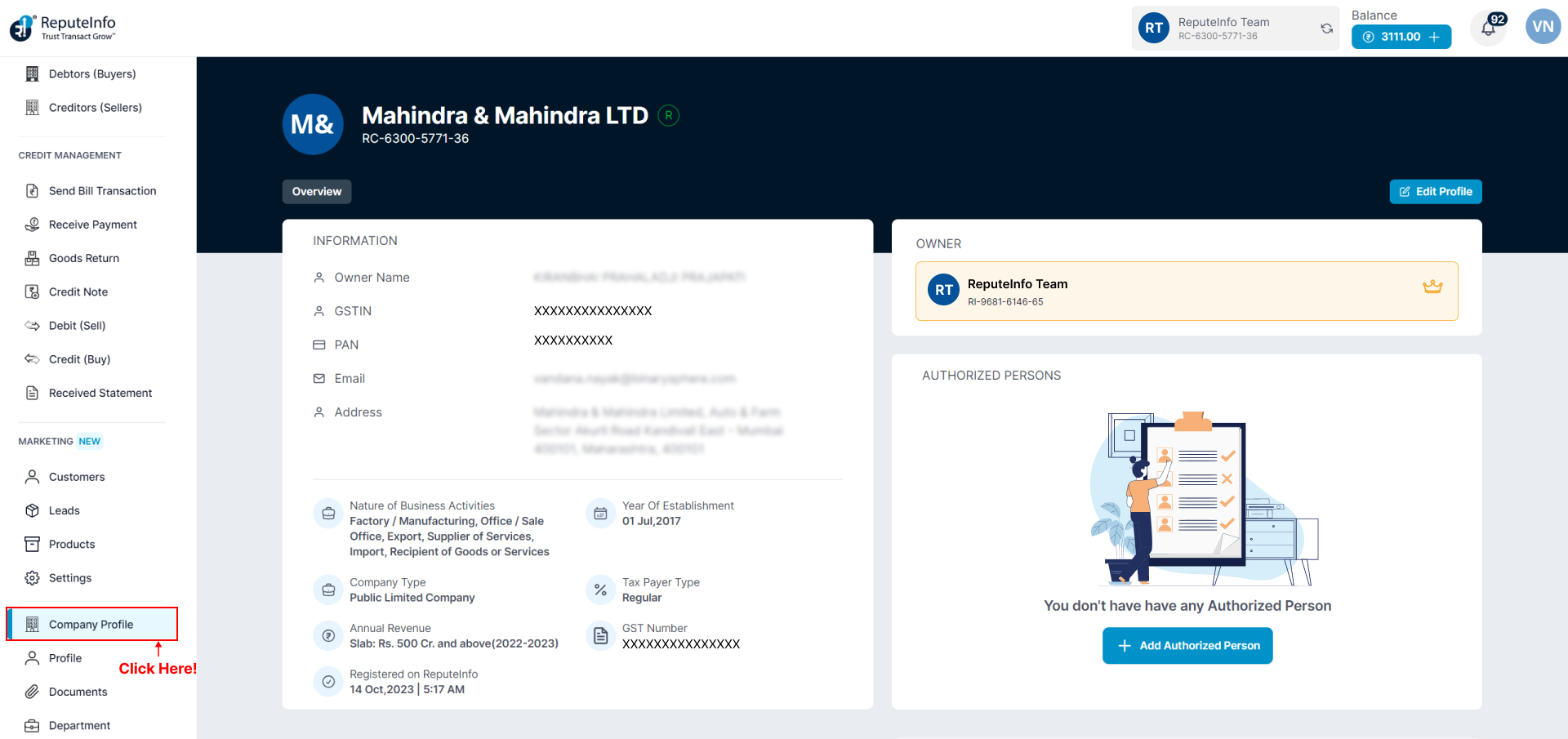
Step 3: Click on the Add Authorized Person button.
Step 4: Enter the Mobile Number of the person you want to add as a member.
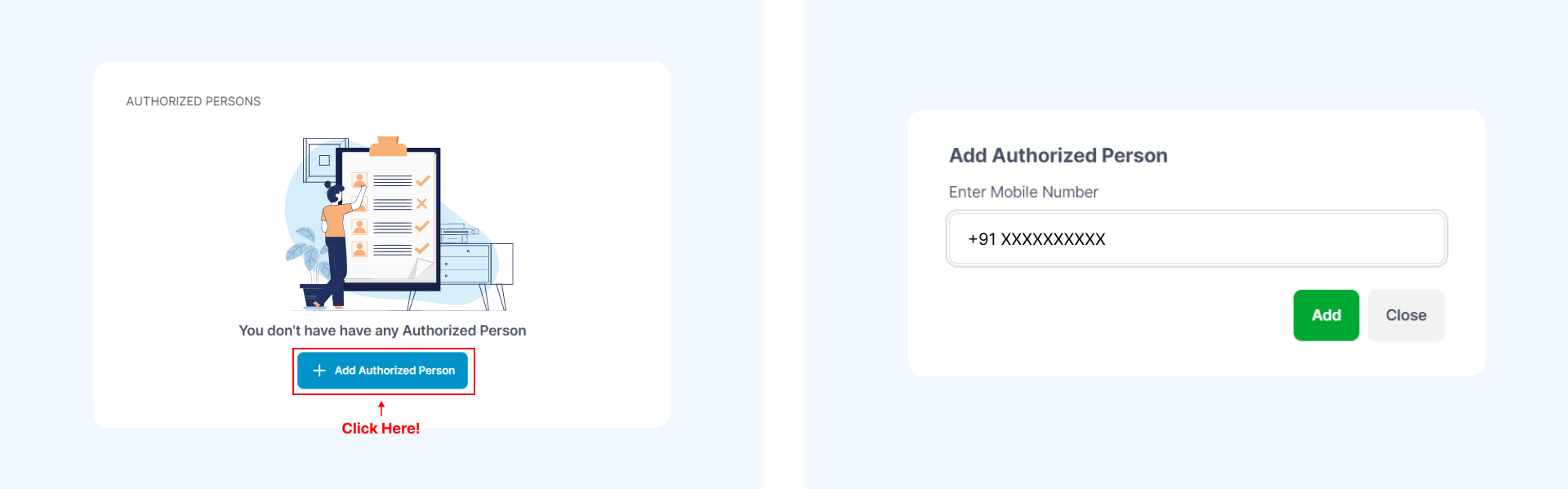
Step 5: Click on the Add button.
Step 6: If Mobile Number is Not register on ReputeInfo plateform you can continue and confim with OTP.
Step 7: A form will appear.
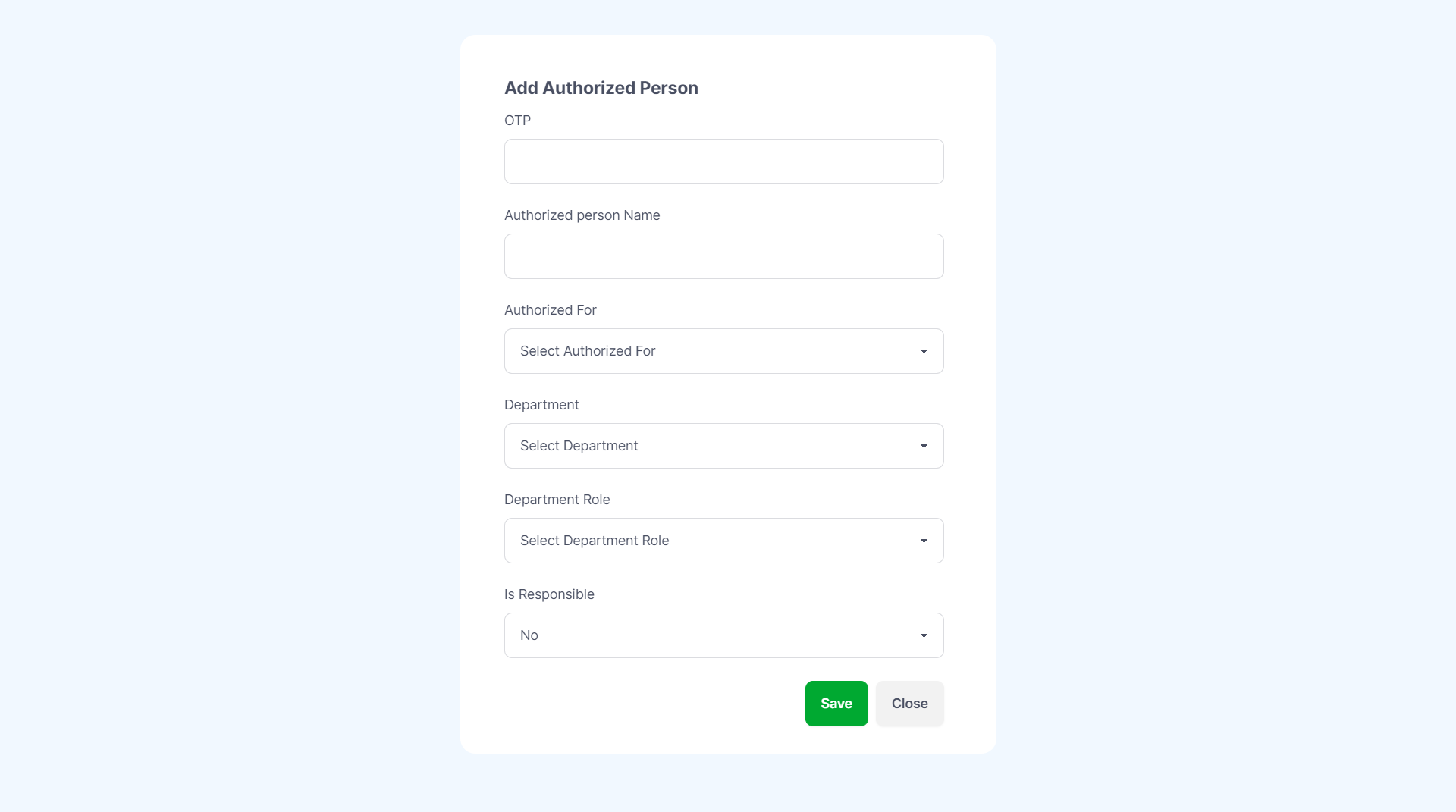
Step 8: Choose the department and department roll you want to assign to the member,if you have no department and roll fist you add Here
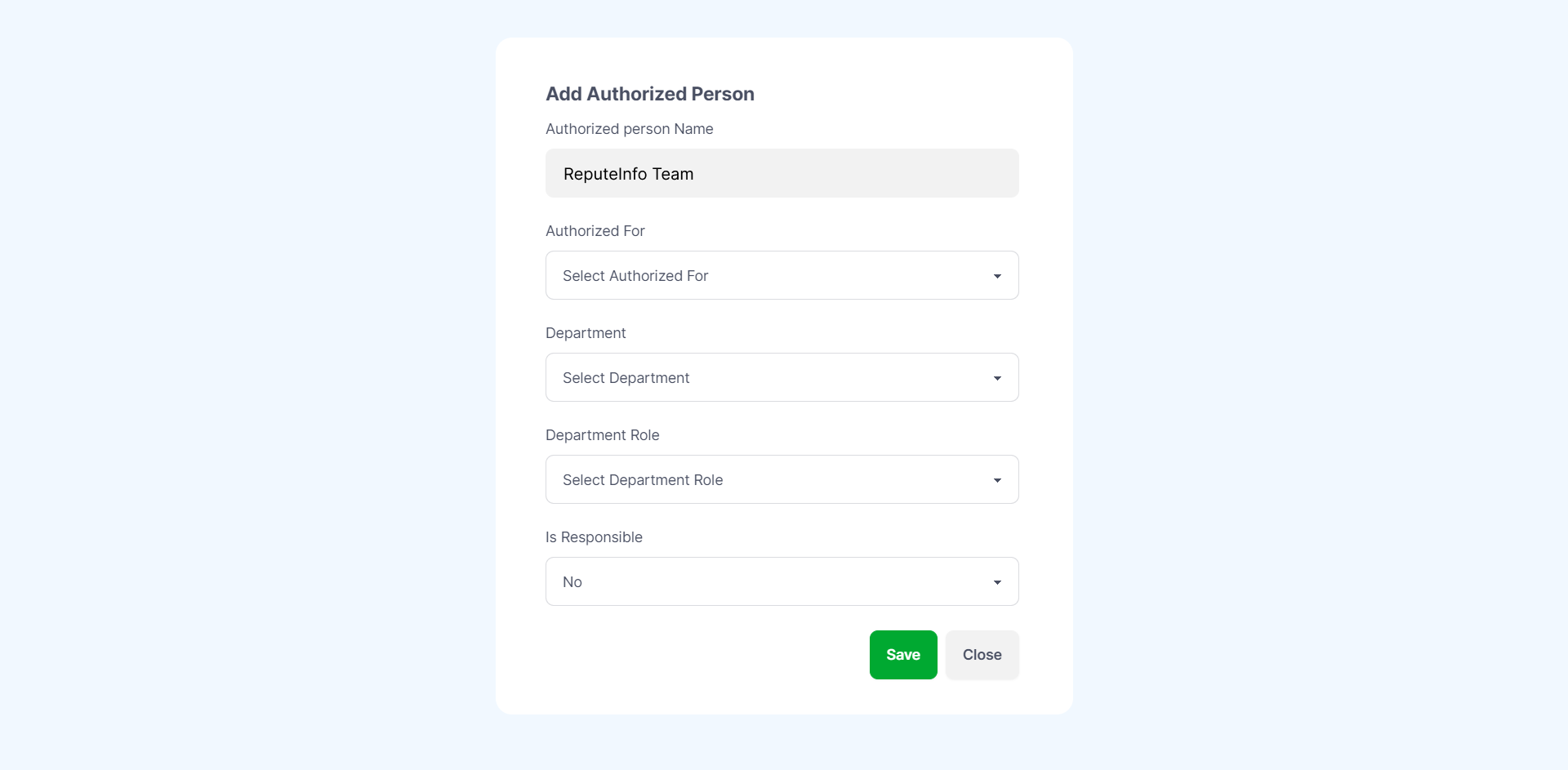
Step 5: Click on the Save button to create the new Authorized Person.
Step 1: Log in to your ReputeInfo account.
Step 2: Click on the Company Profile.
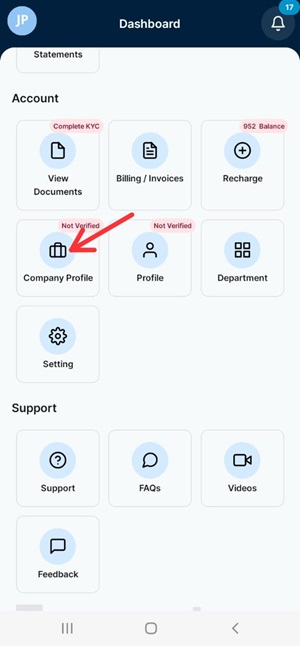
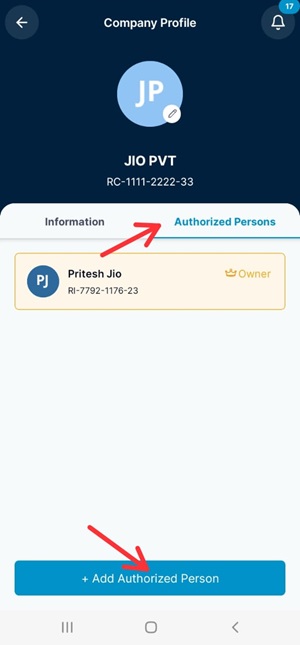
Step 3: Click on the Authorized Person tab and Click on the Add Authorized Person button.
Step 4: Enter the Mobile Number of the person you want to add as a authorized.
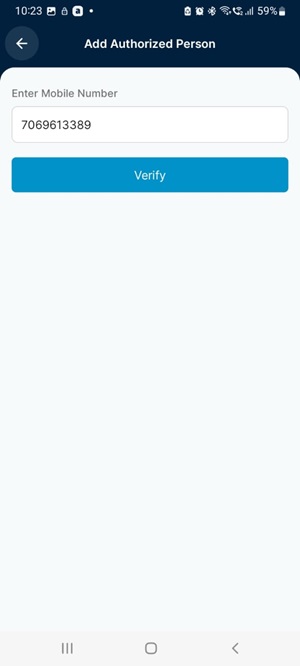
Step 5: Click on the Verify button.
Step 6: If Mobile Number is Not register on ReputeInfo plateform you can continue and confim with OTP.
Step 7: A form will appear.
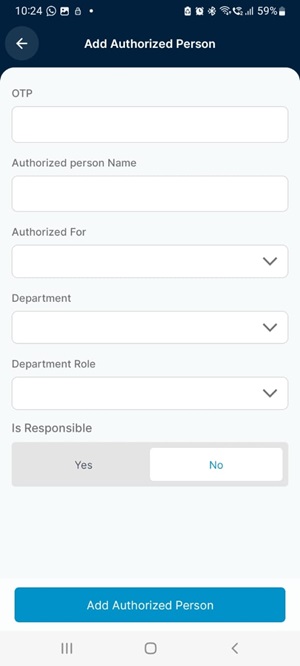
Step 8: Choose the department and department roll you want to assign to the member,if you have no department and roll fist you add Here
Step 9: Click on the Add Authorized Person button to create the new Authorized Person.
The member will be added to the Authorize section.
Roles and permissions are essential for managing users' access and permissions in an organization. ReputeInfo provides an easy-to-use interface to create and manage roles and permissions in an organization.
Update Authorized Person
Step 1: Click on the Auth Person profile of the person you want to Update.
Step 2: Click on the Update icon button
Step 3: Modify the deparment name and/or permissions as required.
Step 4: Click on the Save button to update the Authorized Person.
Delete Authorized Person
Step 1: Click on the Auth Person profile of the person you want to delete.
Step 2: Click on the Delete icon button
Step 3: Confirm the deletion by clicking on the Delete button again in the confirmation prompt.